Documentation / Usage
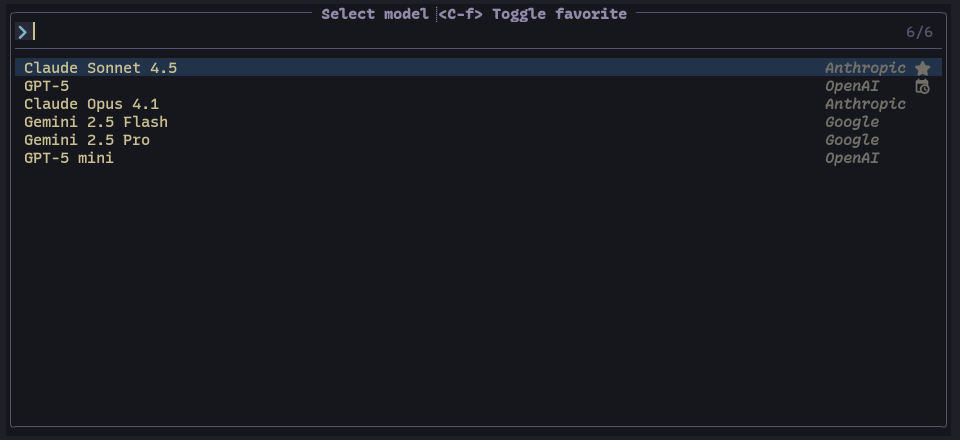
<leader>op opens the provider and model picker. <C-f> marks a favorite.
The list shows favorites, then recently used models, then everything else.
<leader>oV (or /variant) picks a model variant, and <M-r> cycles
through them. Each model remembers its last variant.
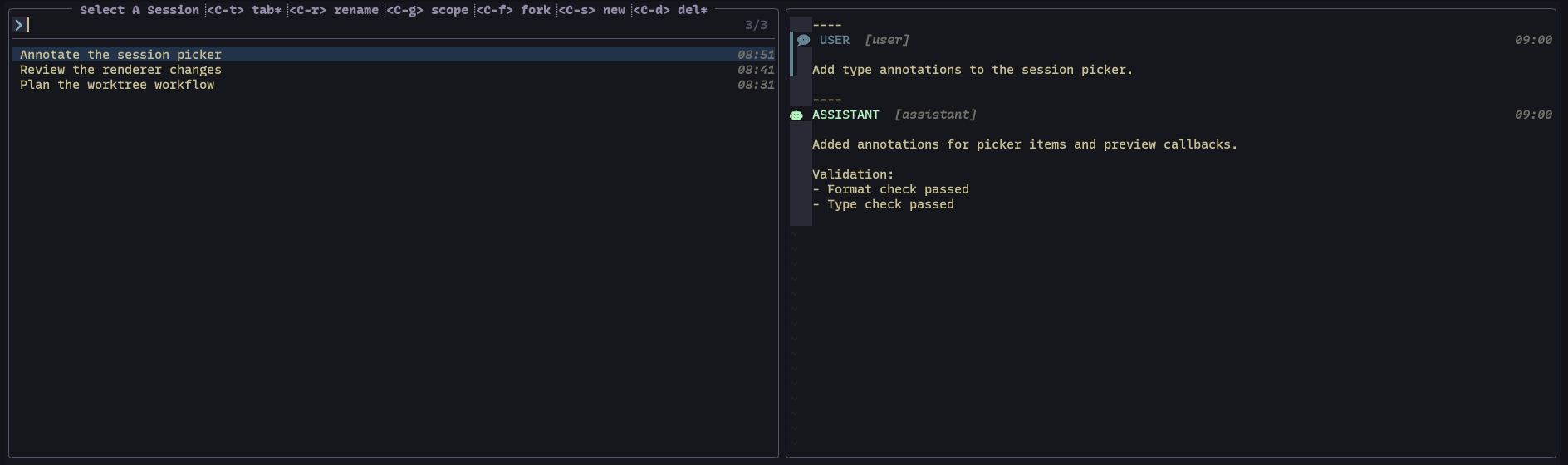
<leader>os opens the session picker. In it:
| Key | Action |
|---|---|
<CR> |
Open the session |
<C-t> |
Open it in a new panel tab |
<C-s> |
Start a new session |
<C-r> |
Rename |
<C-f> |
Fork |
<C-g> |
Switch between this project's sessions and all sessions |
<C-d> |
Delete the selected sessions |
For a fresh conversation in the current panel tab, press <leader>oI. For a
fresh conversation in another panel tab, press <leader>oN.
Panel tabs live inside the panel and are separate from Neovim's tabpages. Each one has its own session, draft, model, and context.
| Default key | Action |
|---|---|
<leader>o< / <leader>o> |
Previous / next panel tab |
<leader>o1 … <leader>o9 |
Select a panel tab by index |
<leader>o? |
Pick a panel tab |
<leader>oQ |
Close the current panel tab |
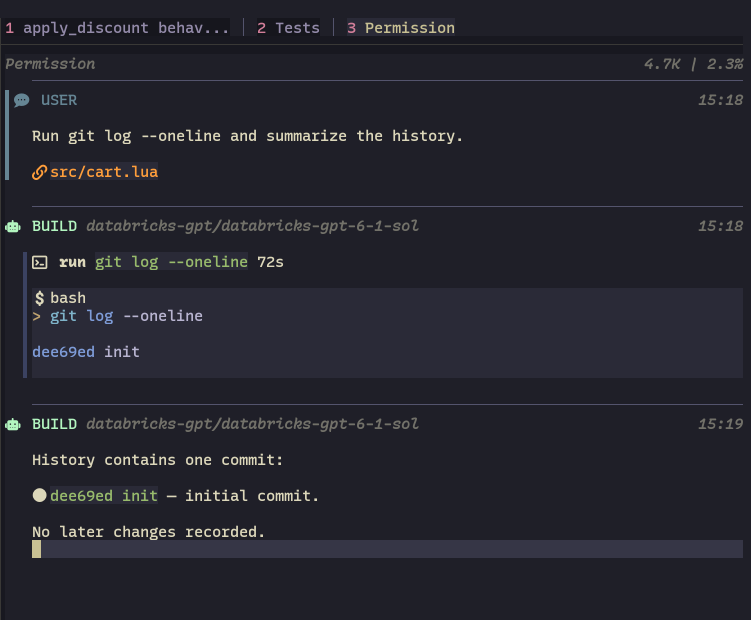
The tab strip is hidden while there is only one tab; set
ui.hide_single_tab = false to always show it. When a session in another tab
asks a question or needs a permission, you get a notification. Turn that off
with ui.notify_on_background_prompt = false.
To open a session in another worktree without changing your editor directory, see Worktree sessions.
<M-m> in the input cycles agents. :Opencode agent select opens a picker
that includes your custom agents.
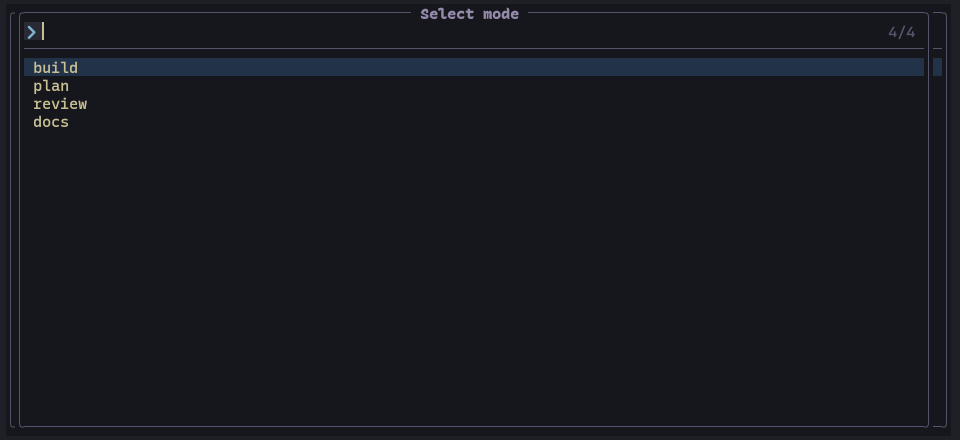
New sessions start with the build agent; change that with default_mode.
plan is meant for reading and planning, but what each agent may do is decided
by its permissions in OpenCode. Agents are defined in the
OpenCode config, not in setup().
The panel has two buffers: input, where you write the prompt, and output, where the conversation appears. Input is a normal buffer, so multiline editing, registers, and motions all work.
| Default key | Action |
|---|---|
<leader>og |
Hide or restore the panel |
<leader>oi |
Focus input in insert mode |
<leader>oo |
Focus output |
<leader>ot |
Switch between the panel and your last editor window |
<leader>oz |
Zoom the panel |
<leader>ox |
Swap the panel's side |
<leader>oq |
Close the panel |
Within the panel:
| Default key | Where / mode | Action |
|---|---|---|
<CR> |
Input, normal | Send prompt |
<S-CR> |
Input, normal or insert | Send prompt |
<Tab> |
Input or output, normal | Switch panes |
<C-c> |
Input or output | Cancel a running request |
<Esc> |
Input or output, normal | Close the panel |
<Up> / <Down> |
Input, normal or insert | Browse prompt history |
i |
Output, normal | Focus input |
]] / [[ |
Output, normal | Next / previous message |
]u / [u |
Output, normal | Next / previous user prompt |
gf |
Output, normal | Open the file referenced at the cursor |
gr |
Panel, normal | Browse code references |
While a completion menu is open, <Tab>, <Up>, <Down>, <Esc>, and
<C-c> act on the menu first. To change any of these keys, see
Configuration.
Closing the panel only hides it: your draft and scroll position are still there
when you reopen it. Set ui.persist_state = false to discard the buffers on
close instead. Either way the session itself is kept by OpenCode.
The output buffer uses the opencode_output filetype with Markdown
Treesitter highlighting. If
render-markdown.nvim
or markview.nvim is installed, the
output is rendered with it after each update. For render-markdown.nvim, add
opencode_output to its file_types, as in the
install example.
Rendering is debounced while the agent streams. To hook in your own renderer or turn rendering off, see Output and rendering.
Permission requests appear in the output. Move between the choices with j/k
or the arrow keys and press <CR>, or press 1, 2, or 3. The same choices
are available as commands:
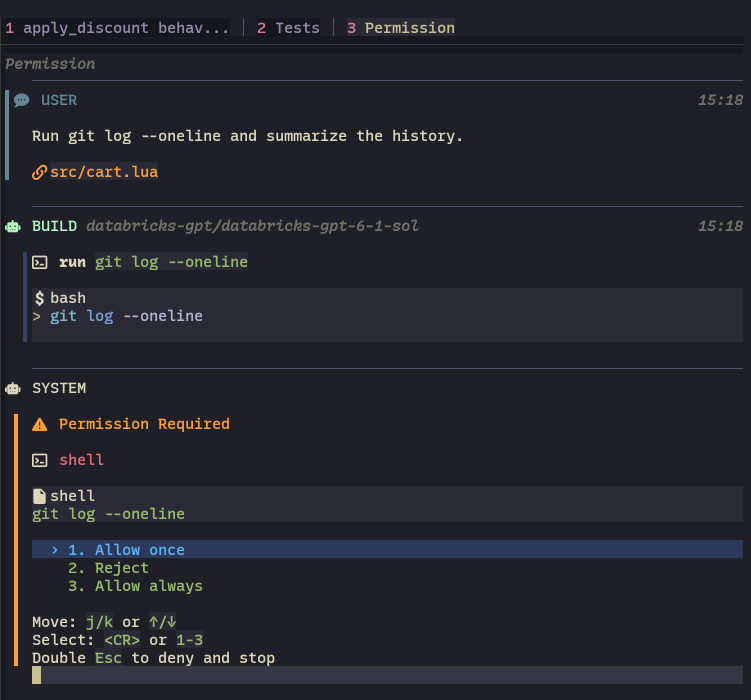
:Opencode permission accept
:Opencode permission accept_all
:Opencode permission deny
accept allows this one request, accept_all allows every future request of
the same kind, and deny rejects it. With several requests waiting, add an
index, for example :Opencode permission accept 2. How long an accept_all
lasts is up to the OpenCode server.
Questions from the agent also appear in the output. Set
ui.questions.use_vim_ui_select = true to answer them through vim.ui.select
instead. Answering "Other" opens a small floating input; set
ui.questions.inline_other_input = false to use vim.ui.input.
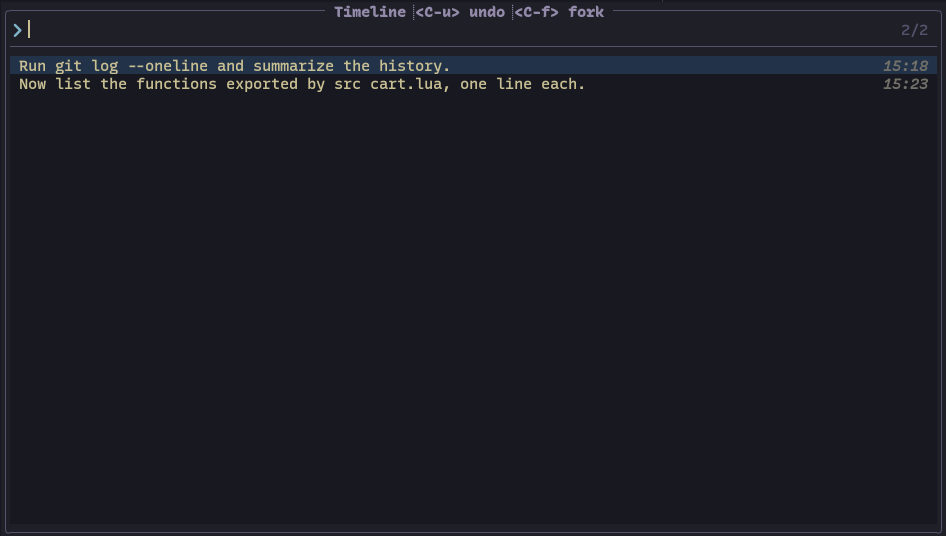
<leader>oT opens the timeline of your prompts in this session. <CR> jumps
to a message, <C-u> undoes back to it, and <C-f> forks a new session from
it. Undo can also revert files the agent changed, so commit anything you want
to keep first.
When the agent starts subagents, each runs in a child session. <leader>oS
picks a child, <leader>oP goes to the parent, and <leader>oB picks a
sibling. Child sessions are read-only: the input is hidden and prompts are not
sent. Set child_readonly = false to write to them.
For small edits without opening the panel, see Quick chat, including commit-message generation and custom ad-hoc commands.
Next: Context, Reviewing changes, or the command reference.
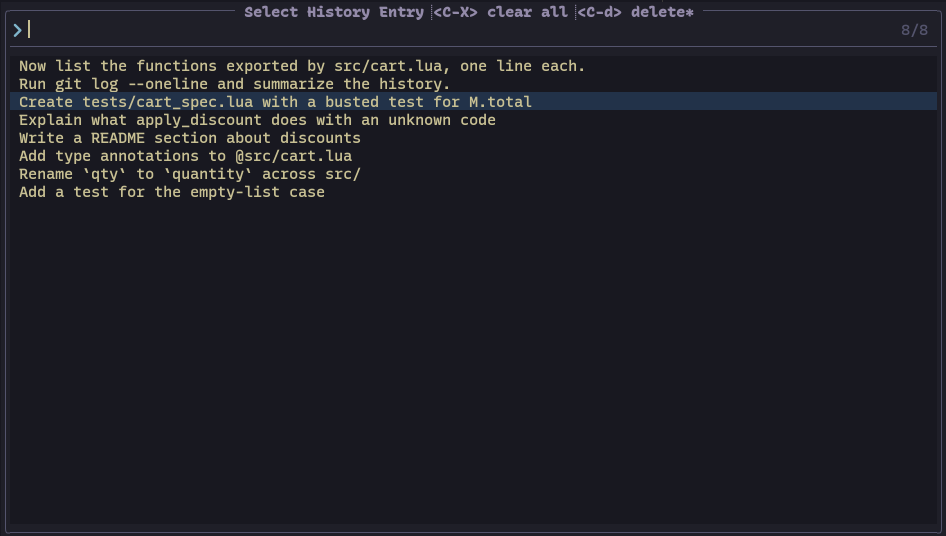
Every prompt you send is saved to
stdpath('data')/opencode/history.jsonl. History is shared across projects
and sessions.
In the input, <Up> and <Down> step through earlier prompts. Your unsent
draft comes back when you step past the newest entry. For a searchable list,
press <leader>oh (or /history). <CR> puts the chosen prompt in the input,
<C-d> deletes the selected entries, and <C-X> clears the whole history.